home capture setup
How to Take a US Passport Photo at Home
Move through the visual setup sequence, then use the troubleshooting cards to identify what should change before the next capture.
Key takeaway
Build the capture setup before taking the photo
Use the room diagram first, then move through the capture examples and troubleshoot the result before checking it.
- Set up the room, camera, subject, and background as one scene.
- Capture a clean original before applying any preparation step.
- Use the checker after the capture sequence, not instead of it.
Find the likely photo issue and next step
My background looks gray, beige, or shadowed even when I stand in front of a white wall.
Background shade is uneven or the face casts a visible shadow.
Likely causes
- overhead lighting
- standing too close to the wall
- mixed color temperature
- camera auto-exposure
Next action
Retake in front-facing soft light and stand away from the wall; use compliant background normalization only if the face and clothing remain unchanged.
Detects background and face shadows, normalizes supported backgrounds, and warns when the photo needs a retake.
A provider photo or kiosk photo fails the online checker for head size.
The face is too small, too large, or not centered in the official crop.
Likely causes
- kiosk crop template mismatch
- photo taken too close or too far away
- online upload crop differs from printed photo crop
Next action
Prepare a fresh 2x2 crop with the chin-to-crown measurement inside the official range before retrying upload.
Auto-crops and checks the head proportion against the selected US passport rule set.
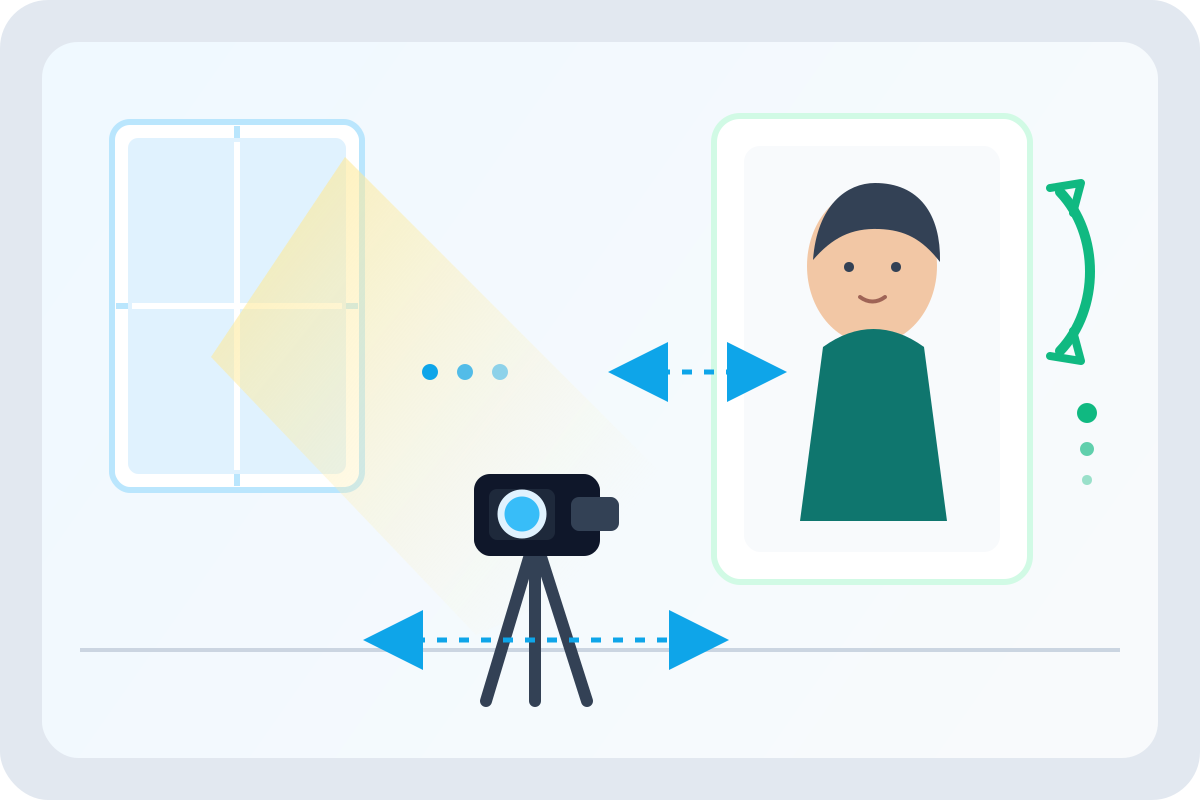 Illustrative diagram
Illustrative room setup with camera, subject, background, and light direction.
Visual examples
Do and do-not guidance
Illustrative diagramHome photo setup visual overview.
Use a centered 2 x 2 inch frame
The head is centered and sized inside a square passport photo frame.
Fix: Crop to a square 2 x 2 inch output and keep the face straight to camera.
PixPass action: Auto-crop and head-size measurement
Illustrative diagramIllustrative capture setup with lighting and spacing cues.
Keep the background plain and bright
A white or off-white background with even lighting is acceptable for U.S. passport photos.
Fix: Stand away from the wall and use even front lighting.
PixPass action: Background replacement and shadow detection
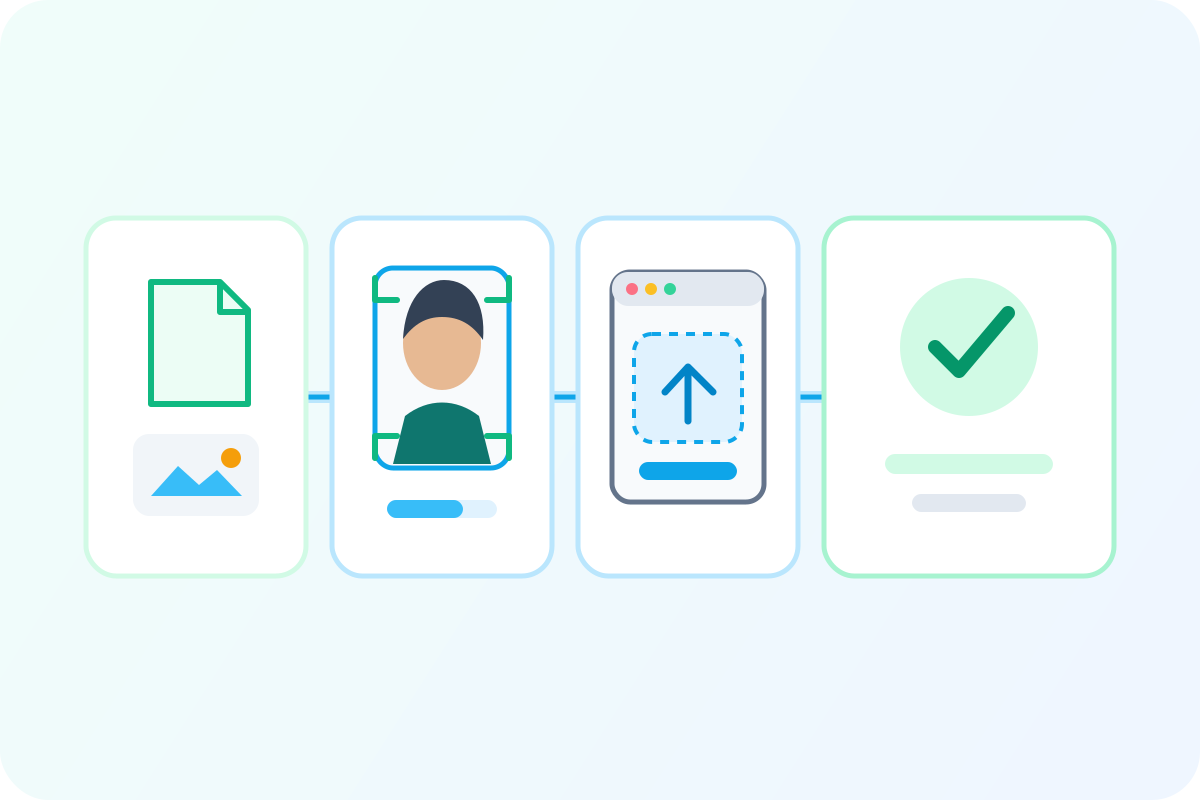 Illustrative diagram
Illustrative digital-photo preparation and upload sequence.
Online renewal and paper photos have different checks
Paper applications care about print size and attachment. Online renewal adds file type, file size, and pixel dimensions.
Fix: Choose the application path before judging file and print requirements.
PixPass action: File-size and format validation for digital uploads
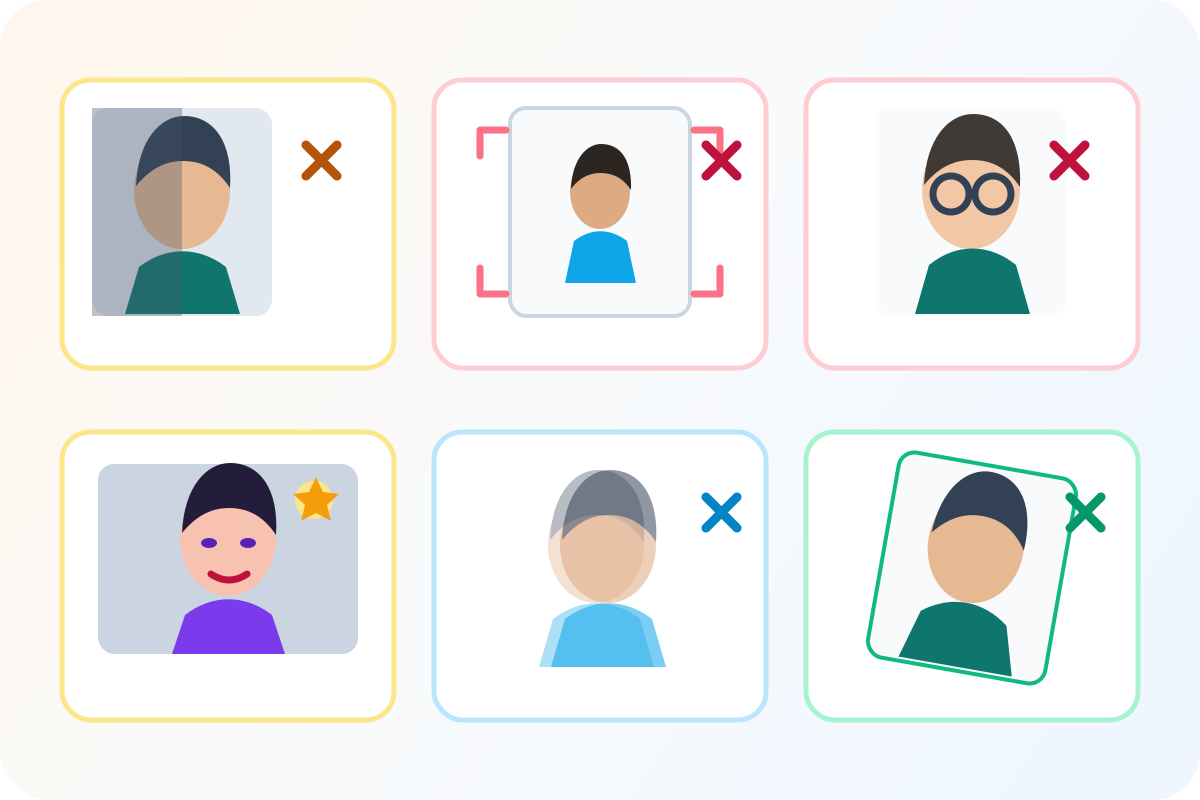 Illustrative diagram
Illustrative diagnostic overview; each issue is explained by the surrounding page content.
Do not leave shadows on the face or background
Side light, overhead light, or standing close to a wall can create shadows that trigger rejection.
Fix: Face a large window, avoid direct sun, and stand at least 4 feet from the wall.
PixPass action: Detects harsh face and background shadows
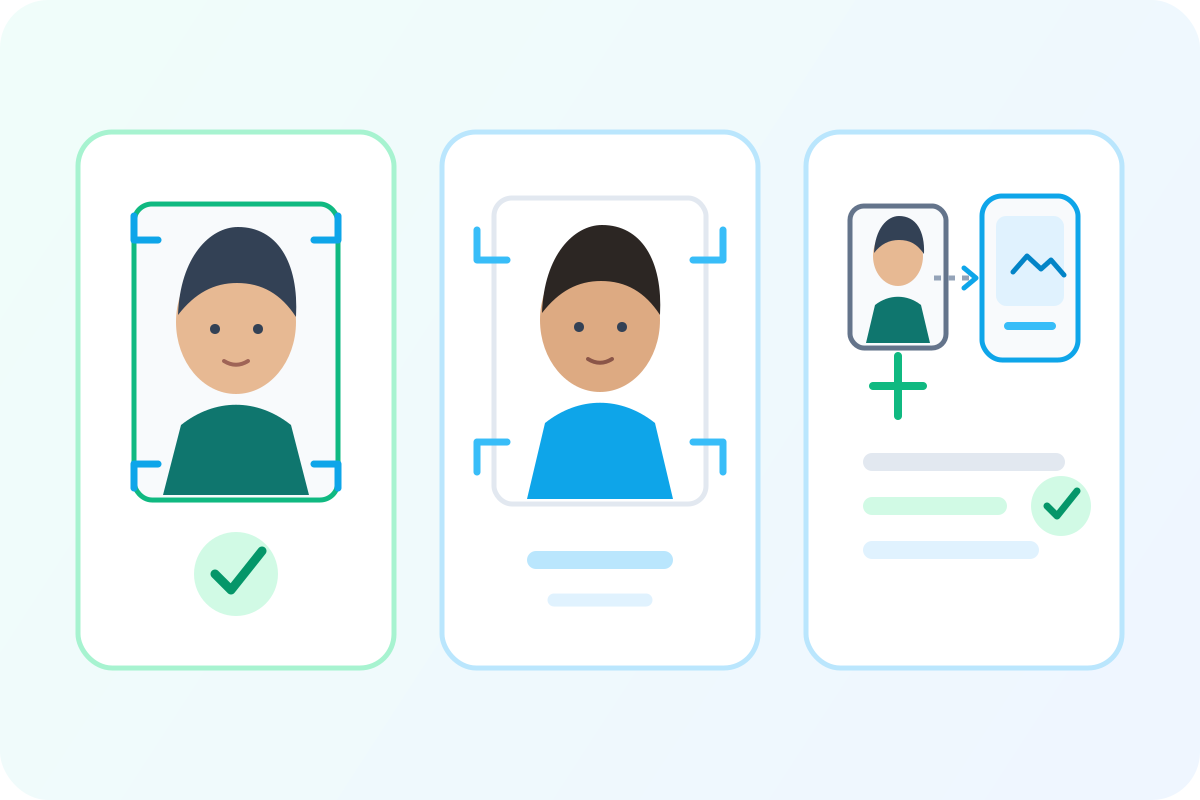 Illustrative diagram
Illustrative framing comparison.
Do not submit a head that is too small
A distant camera or manual crop often leaves the head outside the accepted size range.
Fix: Retake or recrop using a measured passport-photo frame.
PixPass action: Auto-crops to the required head proportion
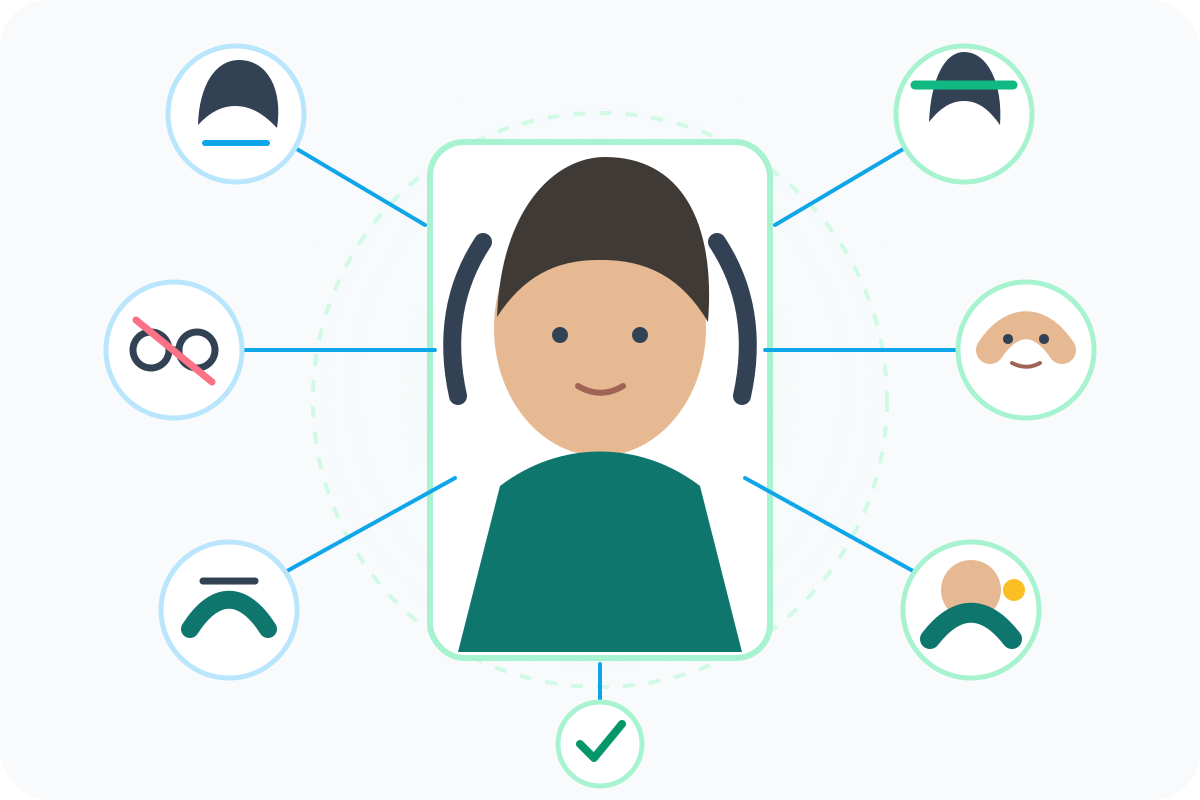 Illustrative diagram
Illustrative appearance-topic map.
Do not wear glasses unless a medical exception applies
Glasses are not allowed in U.S. passport photos except for documented medical reasons.
Fix: Remove glasses before taking the photo, or prepare the required doctor statement for an exception.
PixPass action: Detects glasses and warns before export
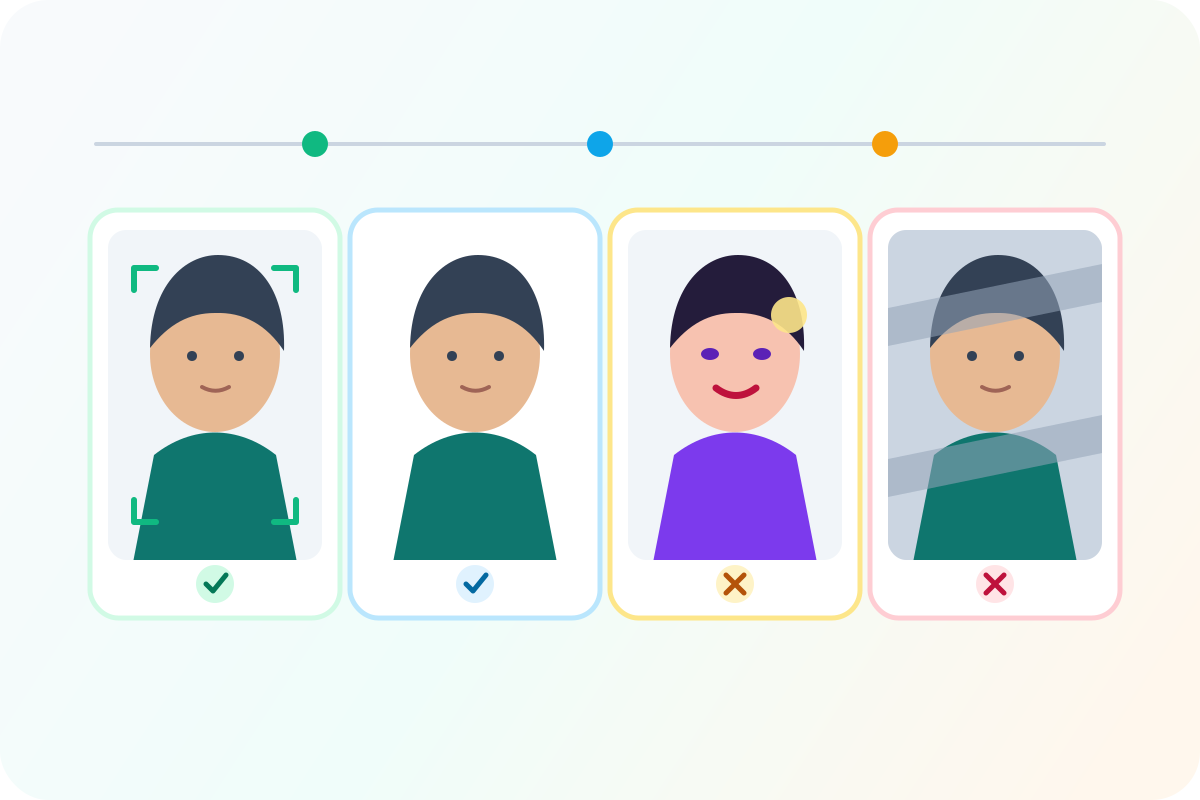 Illustrative diagram
Illustrative editing-boundary comparison.
Separate compliant adjustment from appearance alteration
Cropping, resizing, and background cleanup serve the rule. Beauty filters or face changes do not.
Fix: Never alter skin, eyes, facial shape, hairline, or expression.
PixPass action: Limits edits to crop, background, resize, and quality checks
Use these examples as visual guidance. Official rule text and the selected submission path remain the source of truth for final acceptance.
Sources
Official guidance checked 2026-04-15.
- U.S. Department of State — Passport Photos
Primary official source for US passport photo requirements
Last checked 2026-04-15
official
Federal Register — Passport Photo Rule Changes
Contains the 2016 glasses ban regulation
Last checked 2026-03-01
official
- U.S. Customs and Border Protection
Last checked 2026-04-01
semi_official